

Add developer bank account information
Prerequisites
- Verified and approved developer account with the required business details. You cannot add a bank account if your developer account is still under review. For more information, see Set up developer account details for business.
- Only Owner and Admin roles can add or update bank account details. For more information, see Developer account roles.
- Set up two-factor authentication (2FA).
Set up developer account details for business
After you create a developer account, you can add bank account details to get payouts and disbursements from Clover, whether for a business or an individual account. However, for a business account, you need to provide the business details. This is required before you submit your developer account for verification and approval. Owner and Admin roles can add the bank account details only after their developer account with the business details is approved.
- Log in to the Global Developer Dashboard with your owner account details.
- Turn off the Sandbox toggle icon to access the production environment. The gray toggle icon indicates that you are in the production environment.
Note: If you do not have a verified developer account, a Verify your Developer Account banner appears on the Production environment. - From the top right, select your user name, and then select Developer Settings.
- In the Account Details section, click the edit icon.
- Enter the name you want to display for the developer account.
- Select Business for I'm doing business as an field.
- If you are representing a business, complete all other information:
- Tax Residency Country: Select the country in which you want a payout.
- (Optional) Indirect Tax, where you need to enter GST/VAT, if your Tax Residency Country is in Europe or the Asia Pacific (not in North America)
- Business EIN/Tax ID: Employer identification number (EIN) or tax identifier (Tax ID) from a government tax authority-issued document. Length: 9 alphanumeric characters for all regions, other than Australia, where it is 11 alphanumeric characters.
- Company Legal Name
- Country: Country from which the developer is doing business.
- Address of the business, including City, State / Province, and ZIP or Postal Code.
- Click Save.
Add developer bank account information
- Log in to the Global Developer Dashboard with your owner account details.
- Turn off the Sandbox toggle icon to access the production environment. The gray toggle icon indicates that you are in the production environment.
- From the top right, select your user name, and then click Developer Settings.
- In the Bank Details section, click Add Bank Account. The two-factor authentication (2FA) process starts:
- If you need to complete the 2FA process, a pop-up to set up two-factor authentication appears. See Set up two-factor authentication (2FA).
- If you completed the 2FA process, the Enter the verification code pop-up appears.
- Complete the authentication process. The Step 1: Account Type page appears.
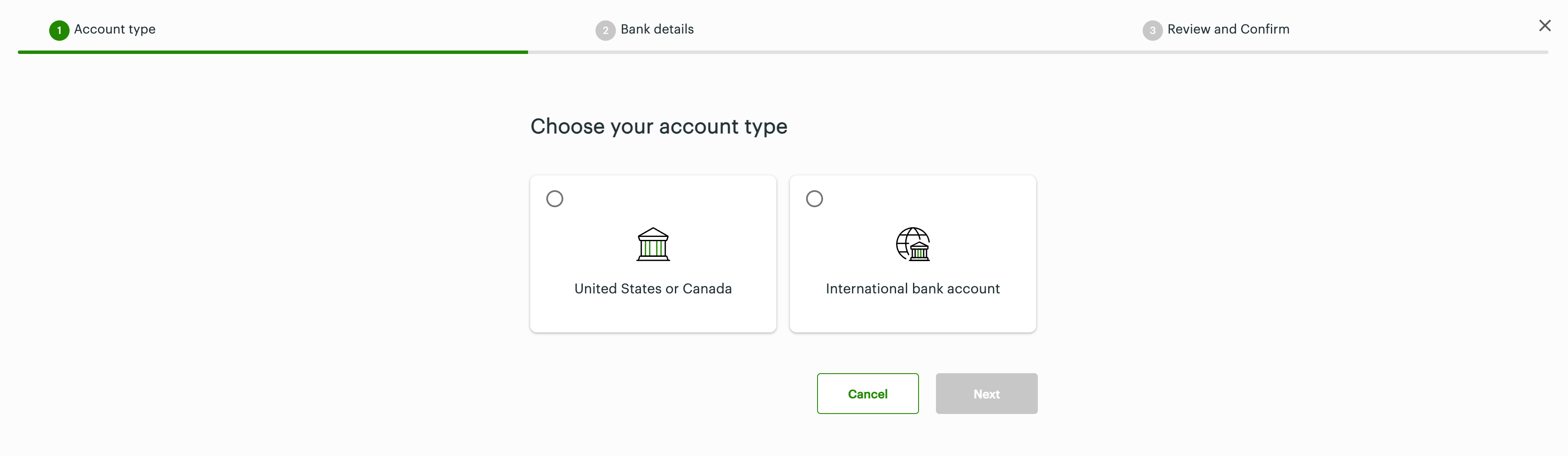
Choose your account type page
- Select an account type: United States or Canada or International bank account, and then select bank identifiers based on the selected country to:
- Add a US or Canada routing number
- Add an International Bank Account Number (IBAN)
- Add a SWIFT/Bank Identifier Code (BIC)
- Add a SORT Code - United Kingdom
IMPORTANTAll bank details information you enter are self-validated and required so add or update the correct bank account information.
Add a US or Canada routing number
After you log in to your production Developer account to add developer bank account information, complete the three steps to add bank account details:
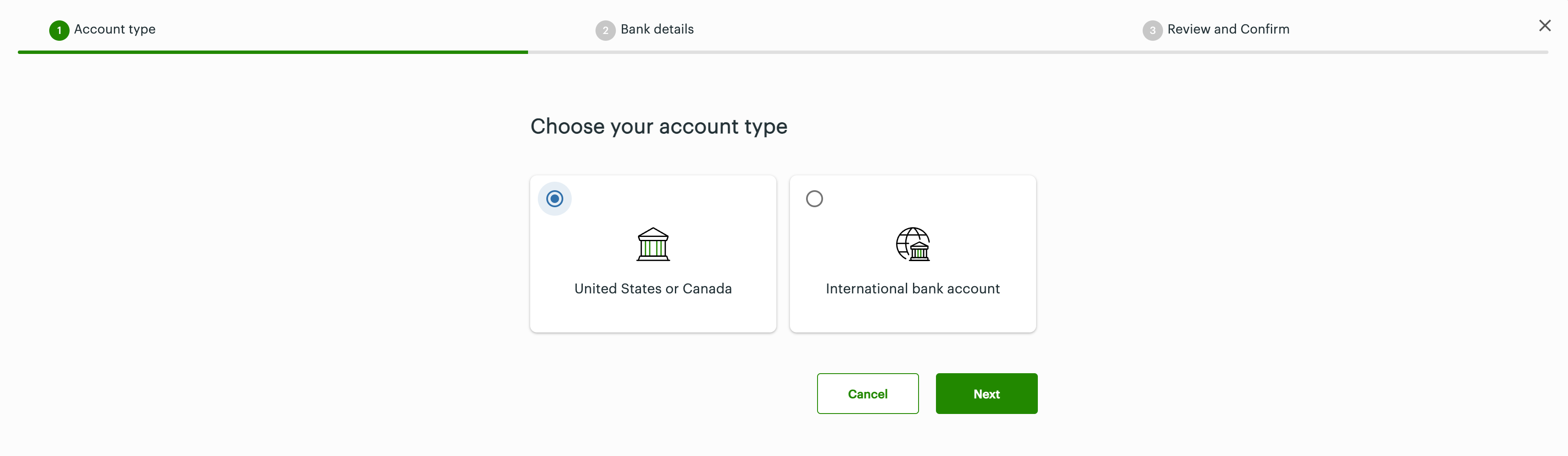
Choose your account type: United States or Canada
Step 1: Account Type—On the Choose your account type page:
- Select the option: United States or Canada.
- Click Next.
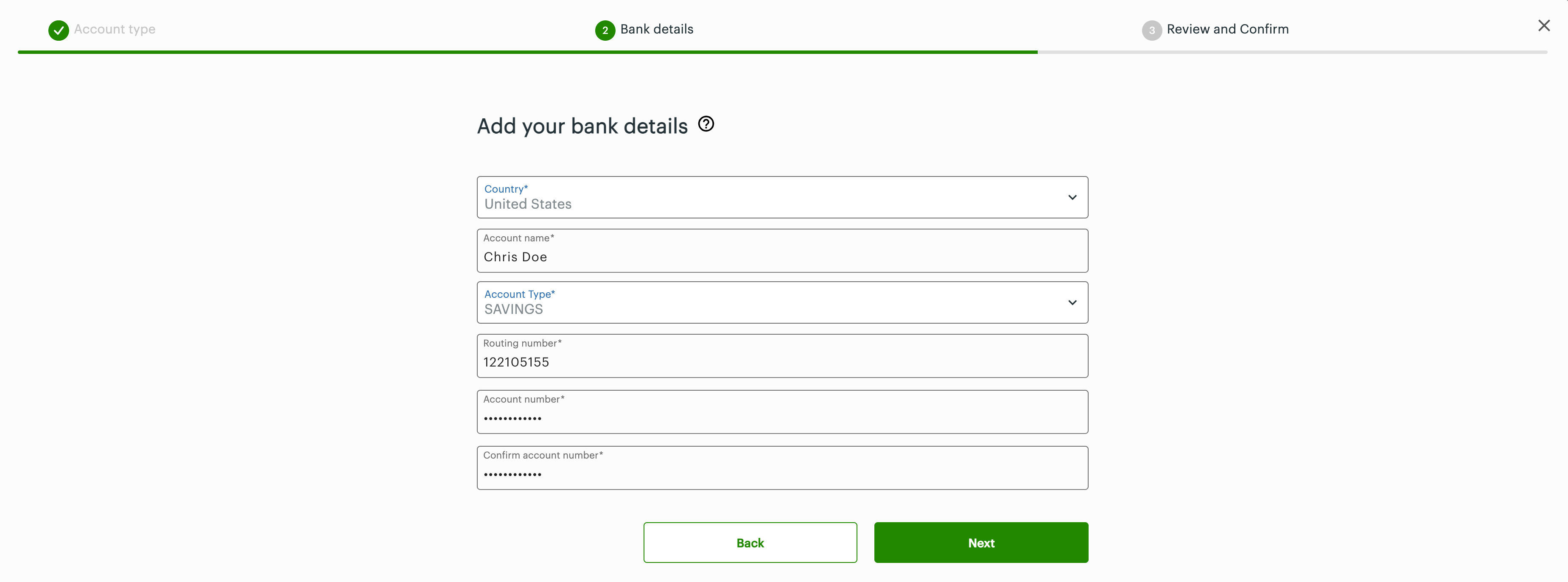
Add your bank details: US or Canada routing number
Step 2: Bank details—On the Add your bank details page:
- Enter bank details in the following fields—Country, Account name, Account type (Savings or Checkings), Routing number, and Account number.
Length: Account number for:- United States (US) bank account is 4- to 12-digit.
- Canada or an International bank account is 4- to 100-digit.
- Click Next.
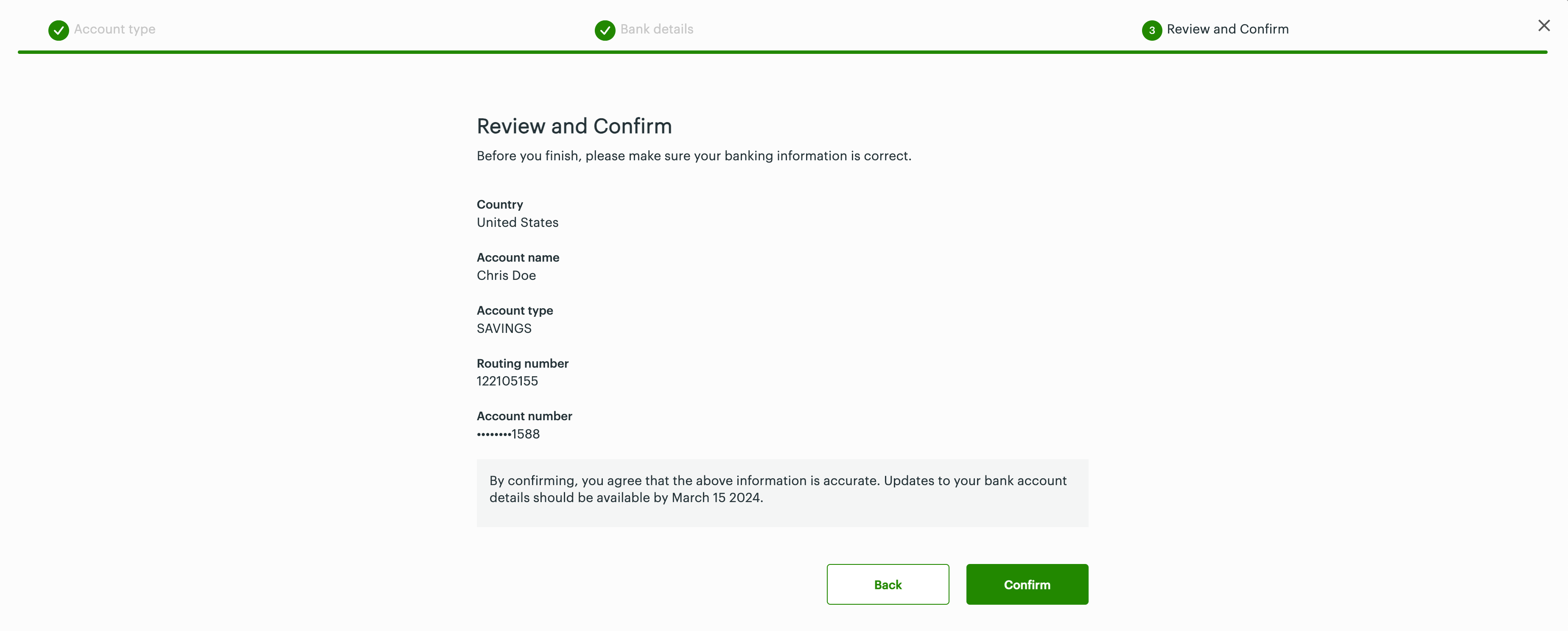
Review and confirm: US and Canada routing number
Step 3: Review and confirm—On the Review and confirm page:
- Review the bank account information.
- If any changes are needed, click Back to go to a previous step.
- If all information is correct, click Confirm. The Developer Account Information page displays a confirmation message with the approximate time by which the new bank account will be updated in your developer account records with Clover.
Add an International Bank Account Number (IBAN)
After you log in to your production Developer account to add developer bank account information, complete the three steps to add bank account details:
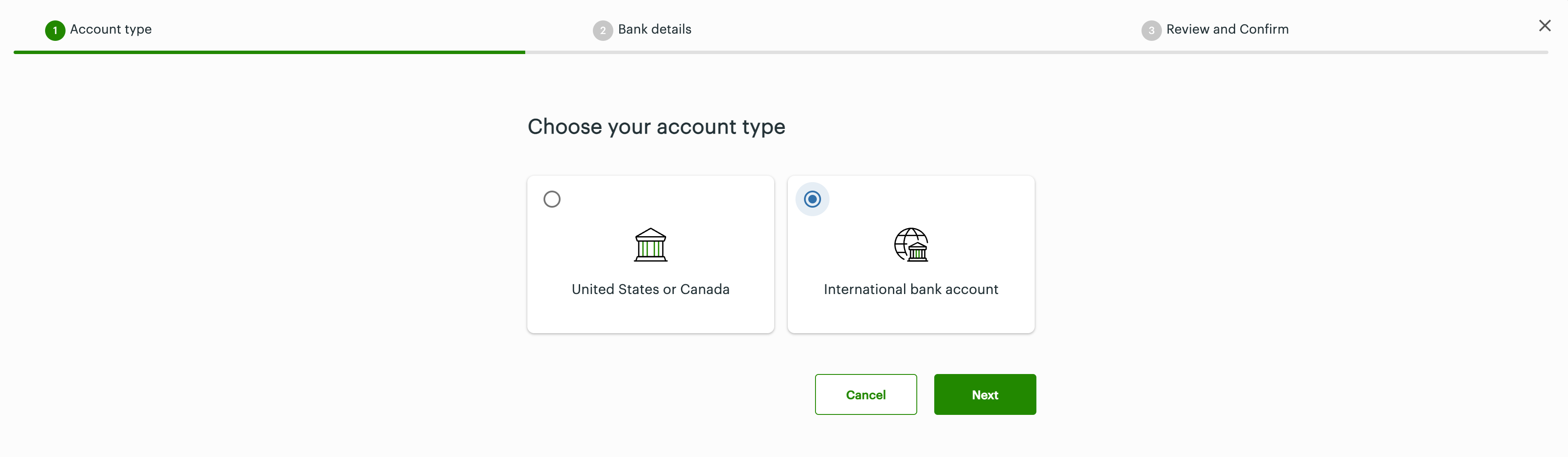
Choose your account type: International
Step 1: Account Type—On the Choose your account type page:
- Select the option: International bank account.
- Click Next. The Select the bank identifier page appears.
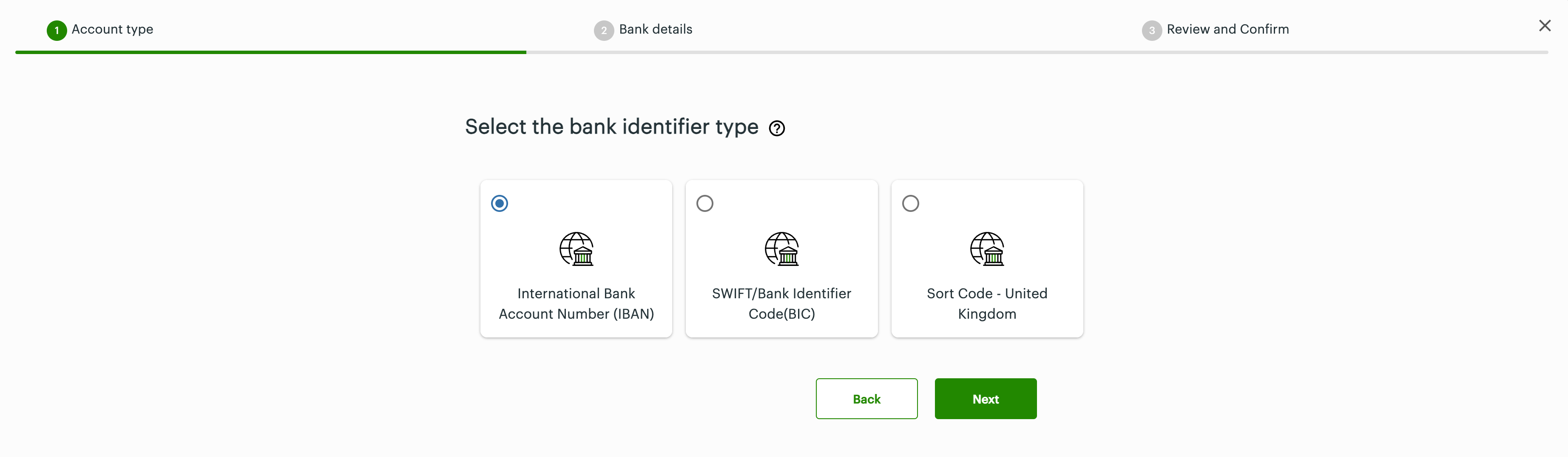
Select the bank identifier type: IBAN
- Select the option: International Bank Account Number (IBAN).
- Click Next.
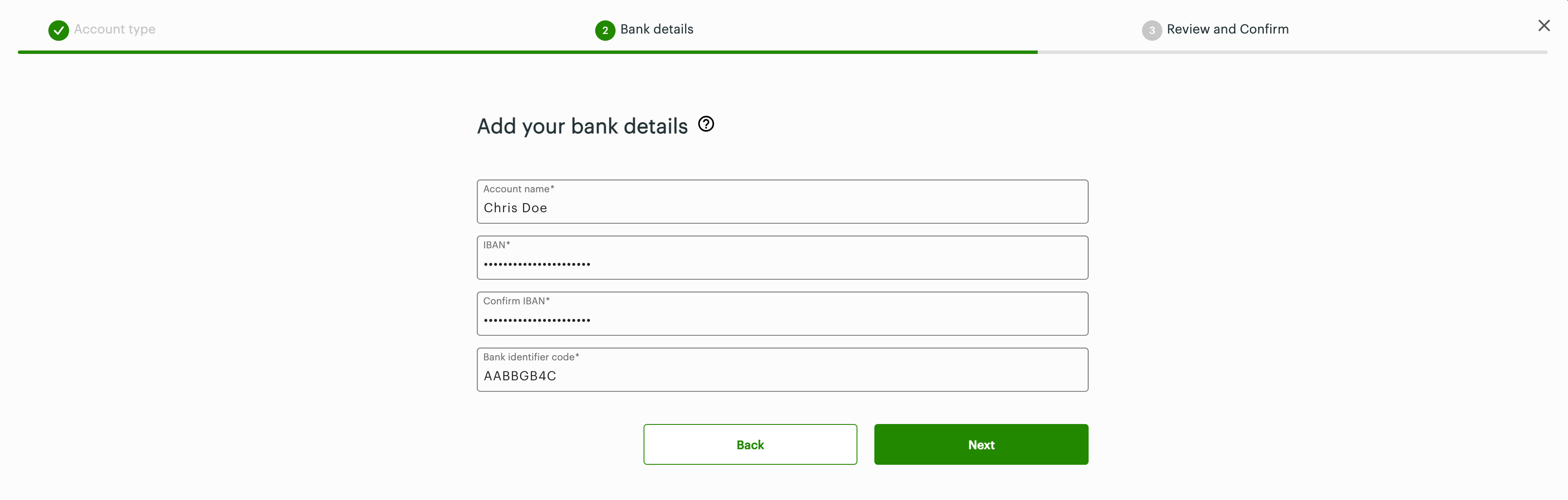
Add your bank details: IBAN
Step 2: Bank details—On the Add your bank details page:
- Enter bank details in the following fields—Account name, IBAN, and the Bank identifier code.
- Click Next.
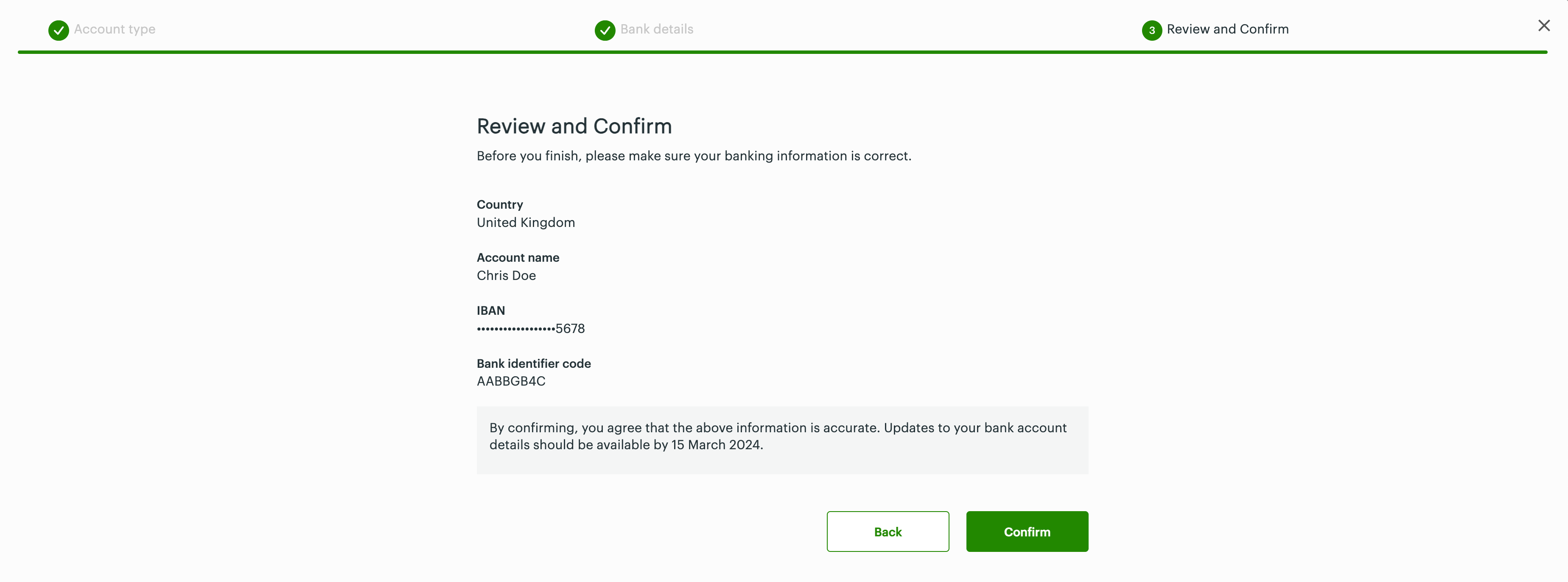
Review and confirm: IBAN
Step 3: Review and confirm—On the Review and confirm page:
- Review the bank account information.
- If any changes are needed, click Back to go to a previous step.
- If all information is correct, click Confirm. The Developer Account Information page displays a confirmation message with the approximate time by which the new bank account will be updated in your developer account records with Clover.
Add a SWIFT/Bank Identifier Code (BIC)
After you log in to your production Developer account to add developer bank account information, complete the three steps to add bank account details:
Choose your account type: International
Step 1: Account Type—On the Choose your account type page:
- Select the option: International bank account.
- Click Next. The Select the bank identifier page appears.
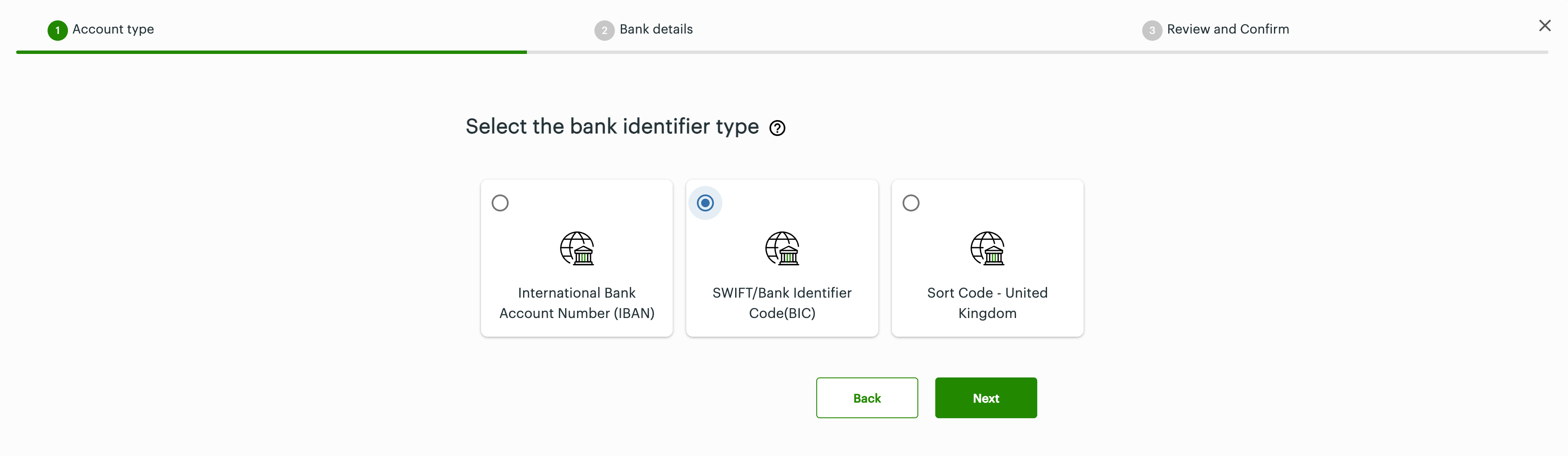
Select the bank identifier type: SWIFT/BIC
- Select the option: SWIFT/Bank Identifier Code (BIC).
- Click Next.
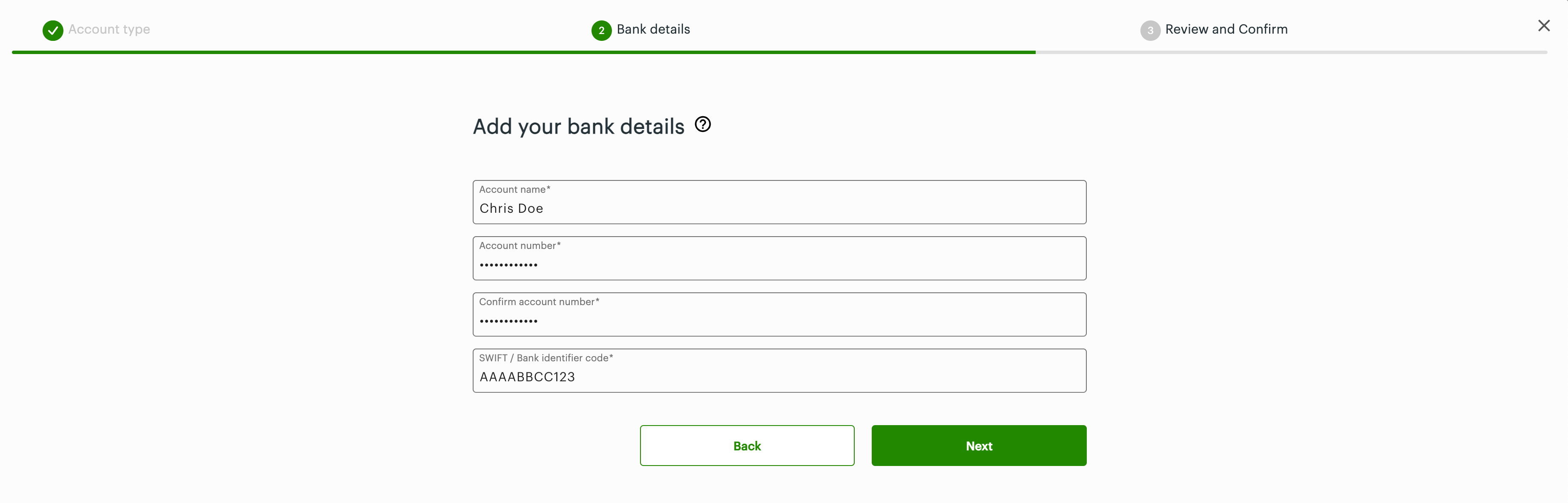
Add your bank details: SWIFT/BIC
Step 2: Bank details—On the Add your bank details page:
- Enter bank details in the following fields—Account name, Account number, and SWIFT or Bank identifier code.
- Click Next.
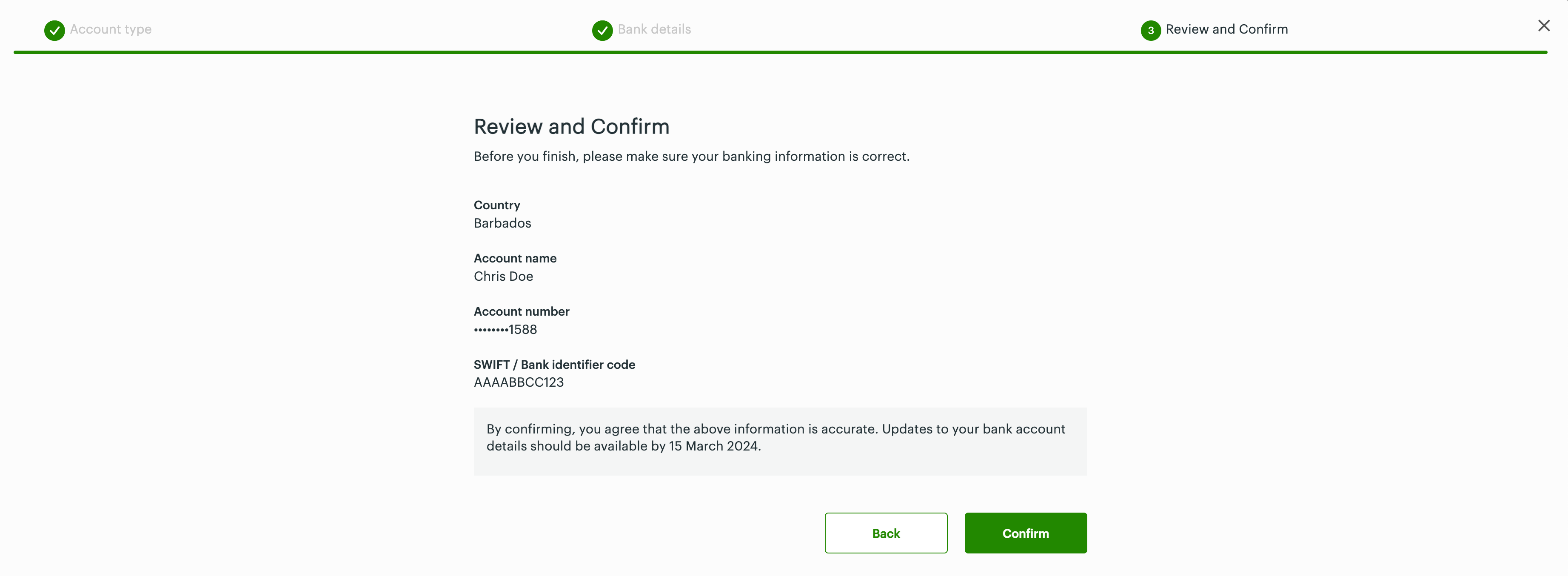
Review and confirm: SWIFT/BIC
Step 3: Review and confirm—On the Review and confirm page:
- Review the bank account information.
- If any changes are needed, click Back to go to a previous step.
- If all information is correct, click Confirm. The Developer Account Information page displays a confirmation message with the approximate time by which the new bank account will be updated in your developer account records with Clover.
Add a SORT Code - United Kingdom
After you log in to your production Developer account to add developer bank account information, complete the three steps to add bank account details:
Choose your account type: International
Step 1: Account Type—On the Choose your account type page:
- Select the option: International bank account.
- Click Next. The Select the bank identifier page appears.
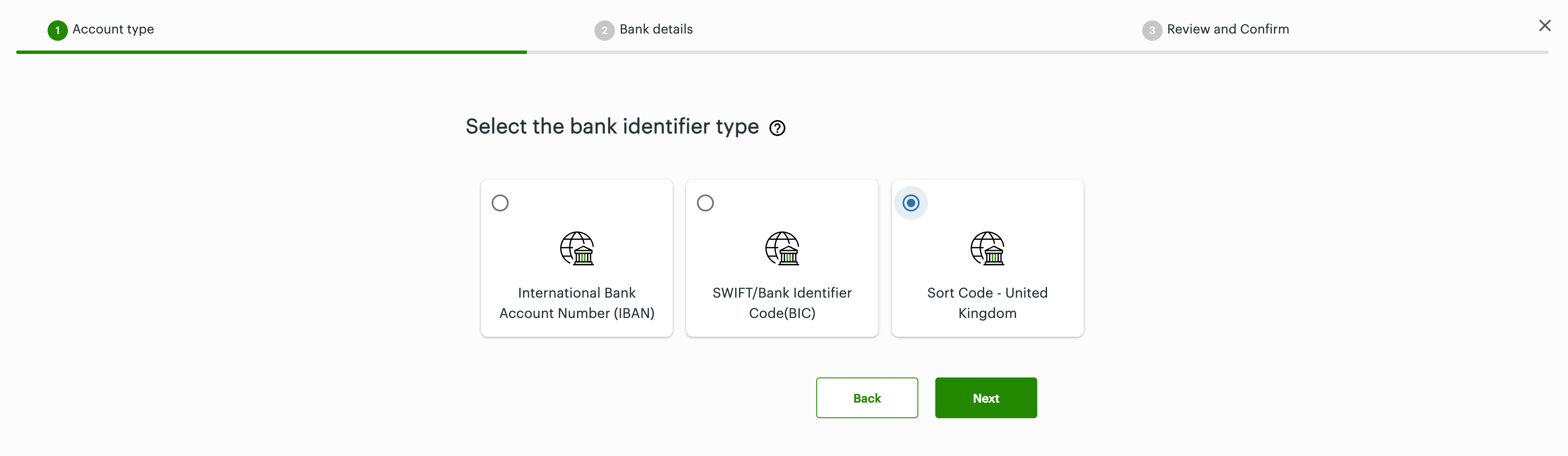
Select the bank identifier type: Sort code - United Kingdom
- Select the option: Sort Code - United Kingdom.
- Click Next.
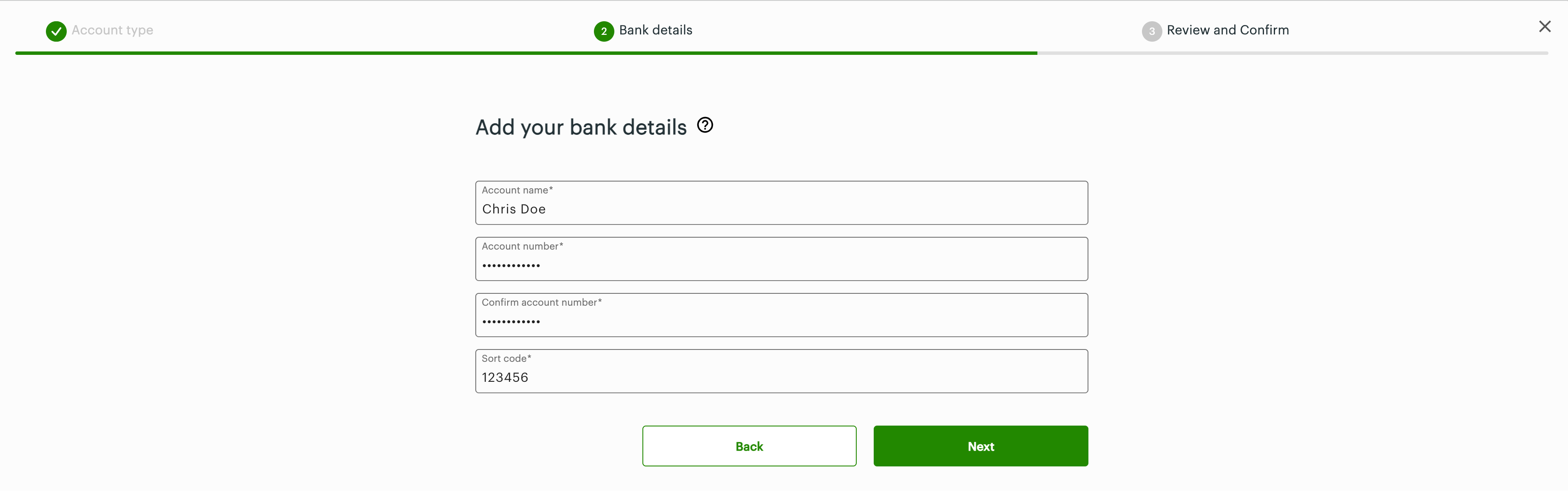
Add your bank details: Sort code - UK
Step 2: Bank details—On the Add your bank details page:
- Enter bank details in the following fields—Account name, Account number, and Sort code.
- Click Next.
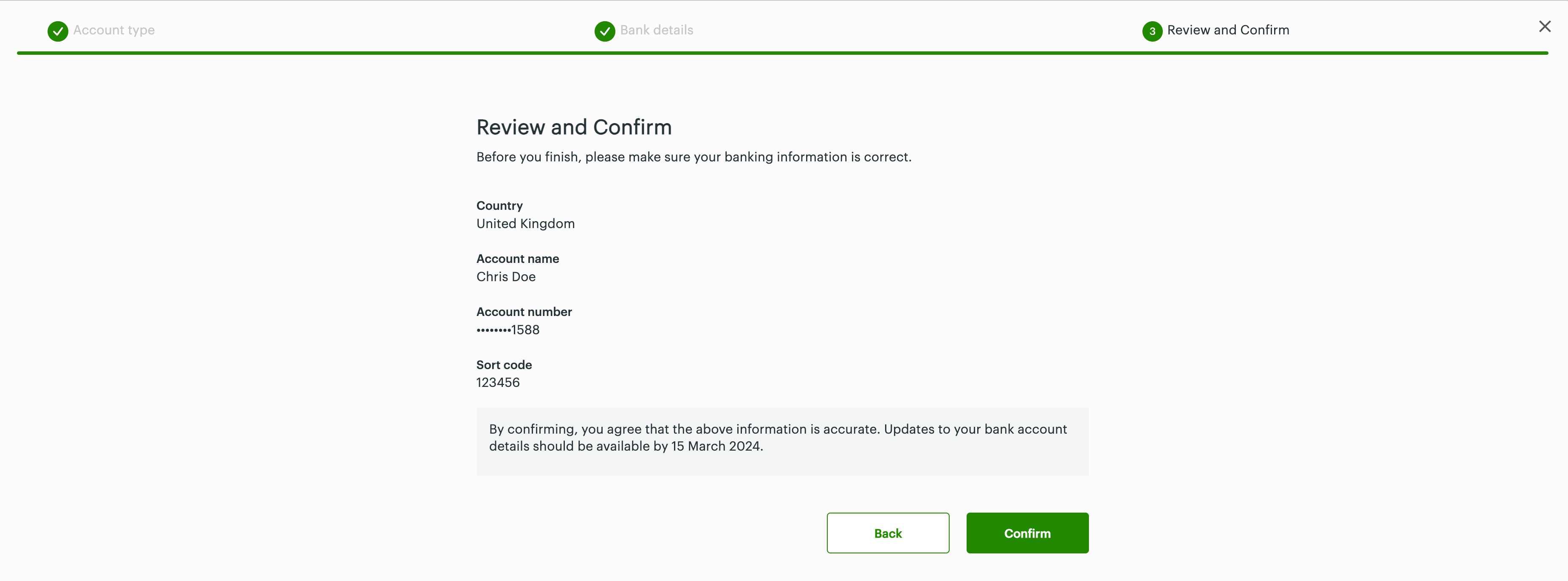
Review and confirm: Sort code - UK
Step 3: Review and confirm—On the Review and confirm page:
- Review the bank account information.
- If any changes are needed, click Back to go to a previous step.
- If all information is correct, click Confirm. The Developer Account Information page displays a confirmation message with the approximate time by which the new bank account will be updated in your developer account records with Clover.
After you add the bank account, you can set up a monthly subscription and metered pricing tiers for your paid app. For more information, see Set up pricing tiers.
Add a region from the bank account information page
To add a bank account for a specific region, you must have an approved developer account in that region. If you are logged in to one region and try to add a bank account for another region without an approved developer account there, a message appears after you click Save.
- On the message that appears, use the link: Click here to add a new region. The Add region pop-up appears.
- Select the checkbox for a region, and click Add Region. The added region appears under the Region icon on the Global Developer Dashboard home page.
- To switch between regions, click the Region icon and then select a region.
- On the Developer Settings page, complete the steps to get a verified and approved developer account for the added region.
- After your developer account is approved, add your bank account information.
Related topics
Updated 5 months ago