

Authenticate developer accounts on the Android emulator
Learn how to authenticate and provision a virtual Clover device using either a legacy developer account or a Global Developer Experience (GDE) account.
Learn how to authenticate and provision a virtual Clover device using either a legacy developer account or a Global Developer Experience (GDE) account.
Overview
The Android Emulator lets you build and test applications on the Clover Operating System (COS) without physical hardware. Authentication requirements depend on your account infrastructure:
| Feature | Legacy developer accounts | Global developer (GDE) accounts |
|---|---|---|
| Identity provider | COS internal database | Ping Identity (OAuth 2.0) |
| Authentication flow | Direct credential check | Temporary merchant token |
| Required input | Email and password | Email and temporary token |
Because COS does not store GDE credentials, it cannot verify a GDE password directly inside the emulator environment. If you have a GDE account, authenticate with a short-lived temporary token tied to a specific test merchant account. Legacy accounts log in directly with standard credentials.
Prerequisites
- Configure Android Studio with Clover device hardware profiles. For more information, see Set up the emulator in Android Studio.
- Activate your developer account and provision at least one test merchant.
Step-by-step provisioning guide
Select the section for your account type to follow the correct authentication steps:
Legacy developer accounts
- Launch your virtual device from the Android Studio Device Manager.
- On the emulator, open Settings.
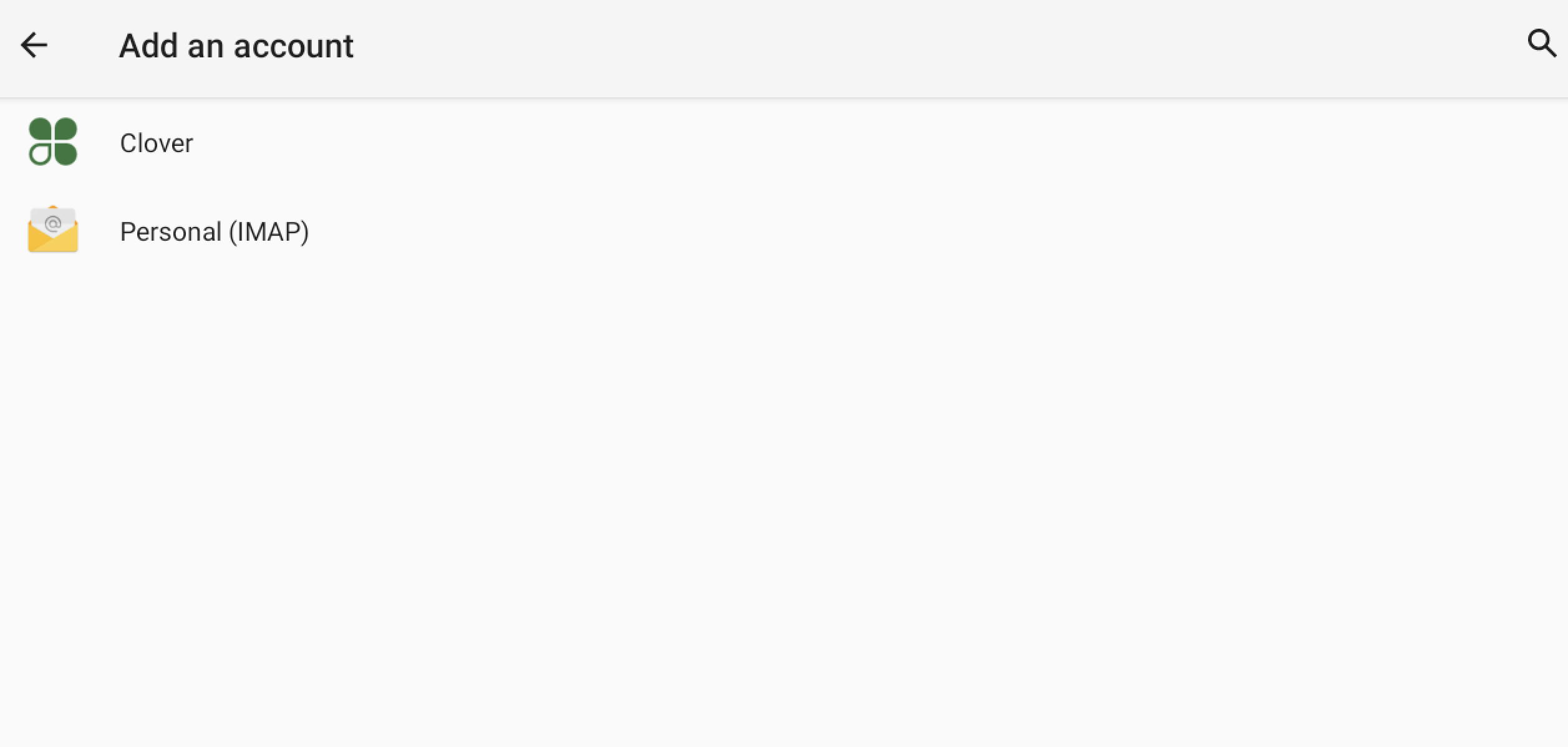
- On the emulator, tap Accounts > Add account > Clover.
- Enter your account email address, and then tap Next.
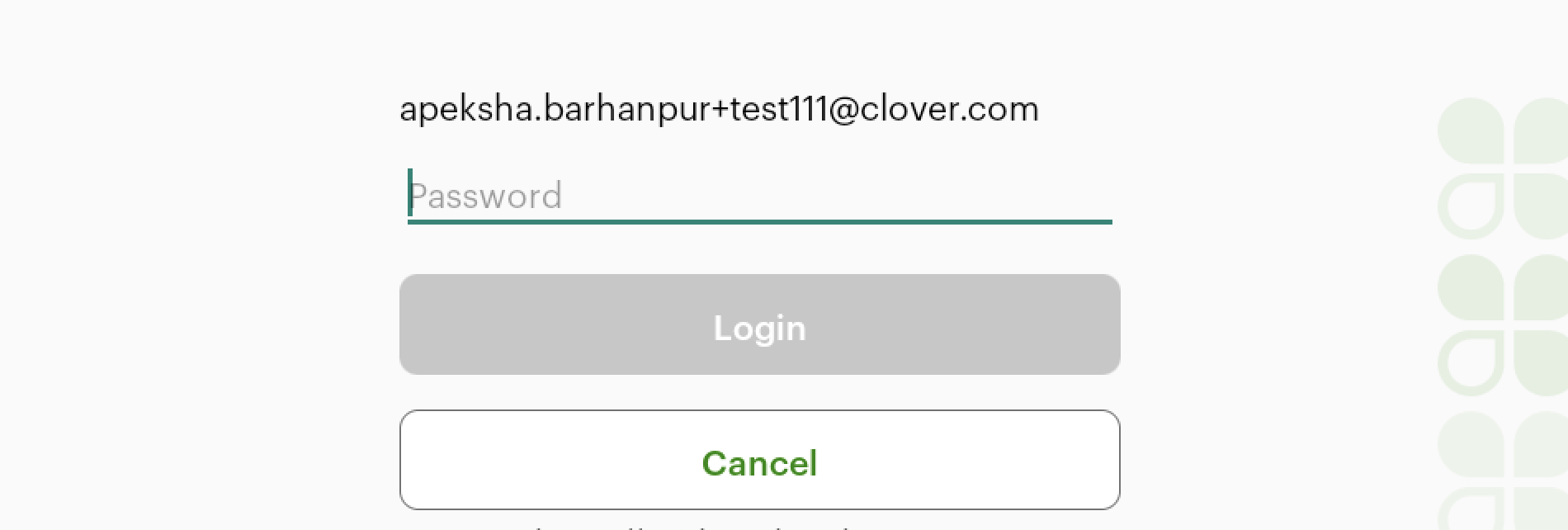
- Enter your account password, and then tap Log In to complete device setup.
Global developer (GDE) accounts
1. Generate a temporary token
-
Log in to the Global Developer Dashboard.
-
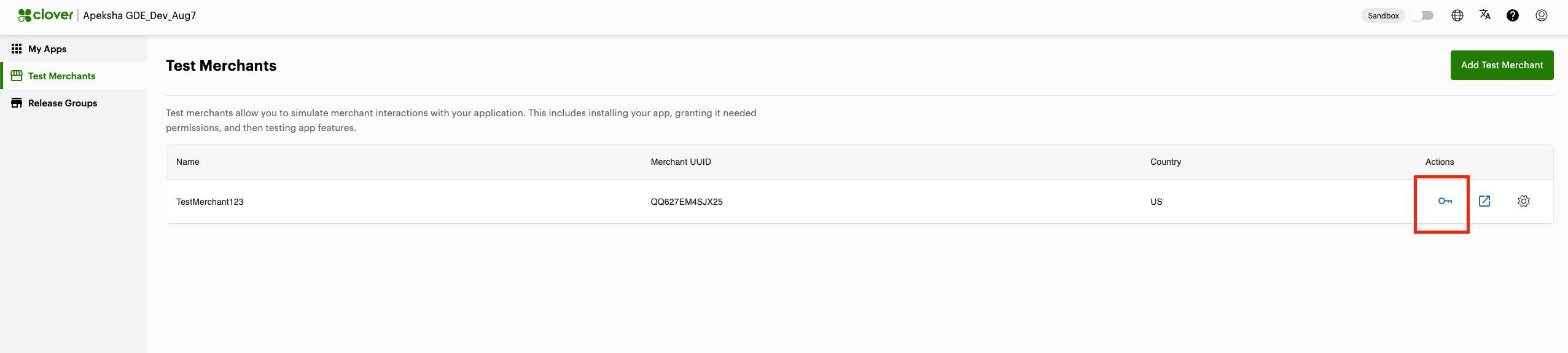
From the left navigation menu, click Test Merchants.
-
Identify the test merchant profile you want to emulate.
-
Click the Key icon corresponding to that merchant.
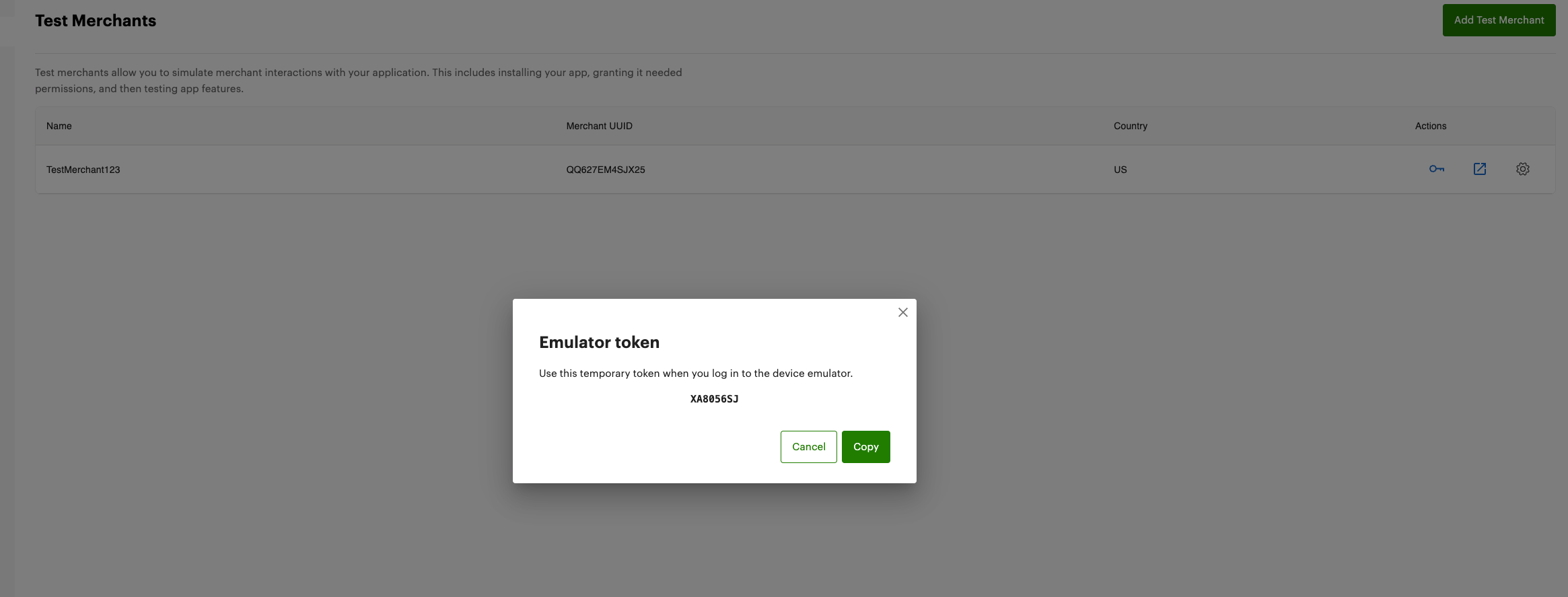
- Copy the temporary token to your clipboard.
2. Complete device setup on the emulator
-
Launch your virtual device from the Android Studio Device Manager.
-
On the emulator, open Settings.
-
On the emulator, tap Accounts > Add account > Clover.
-
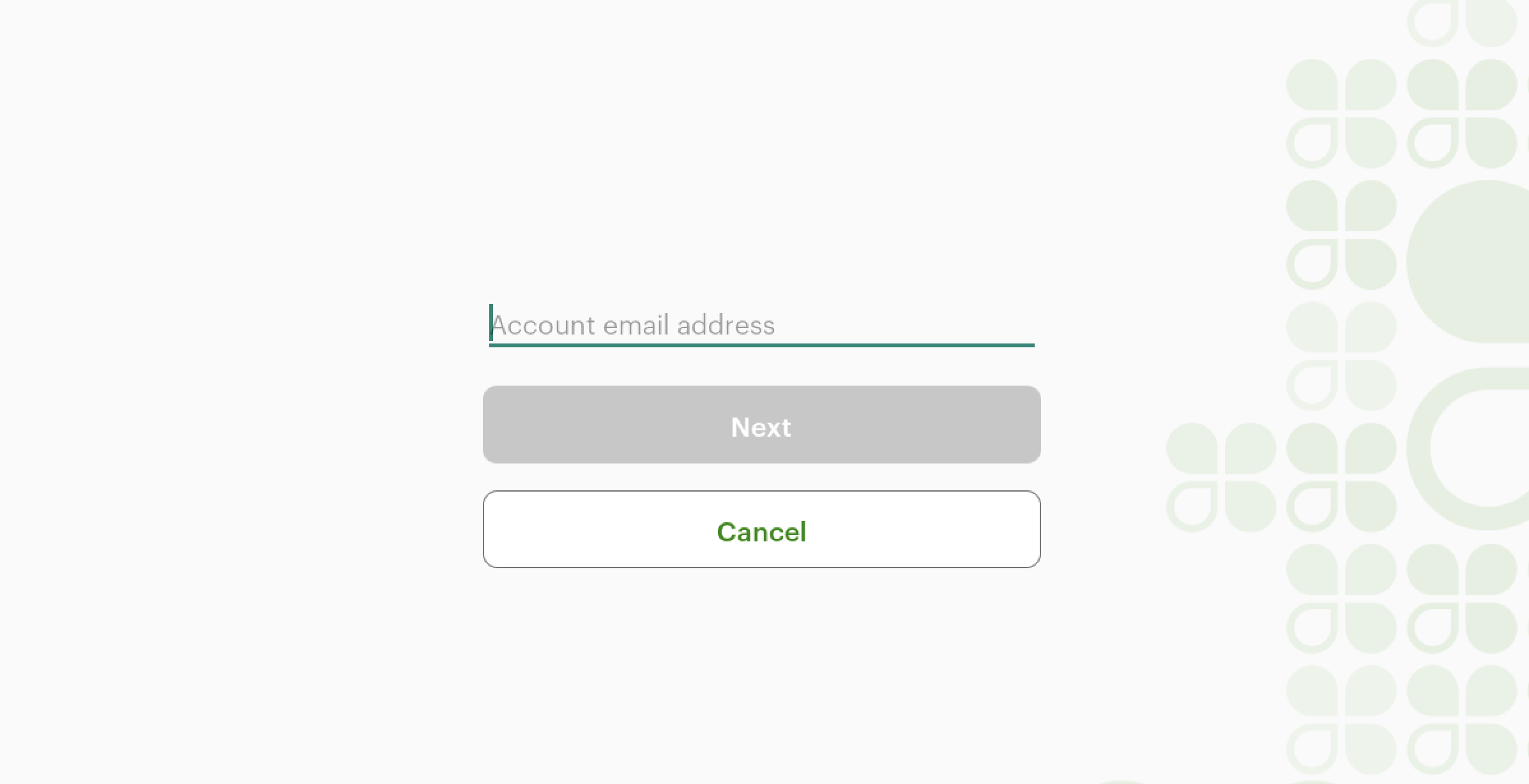
Enter your GDE account email address.
-
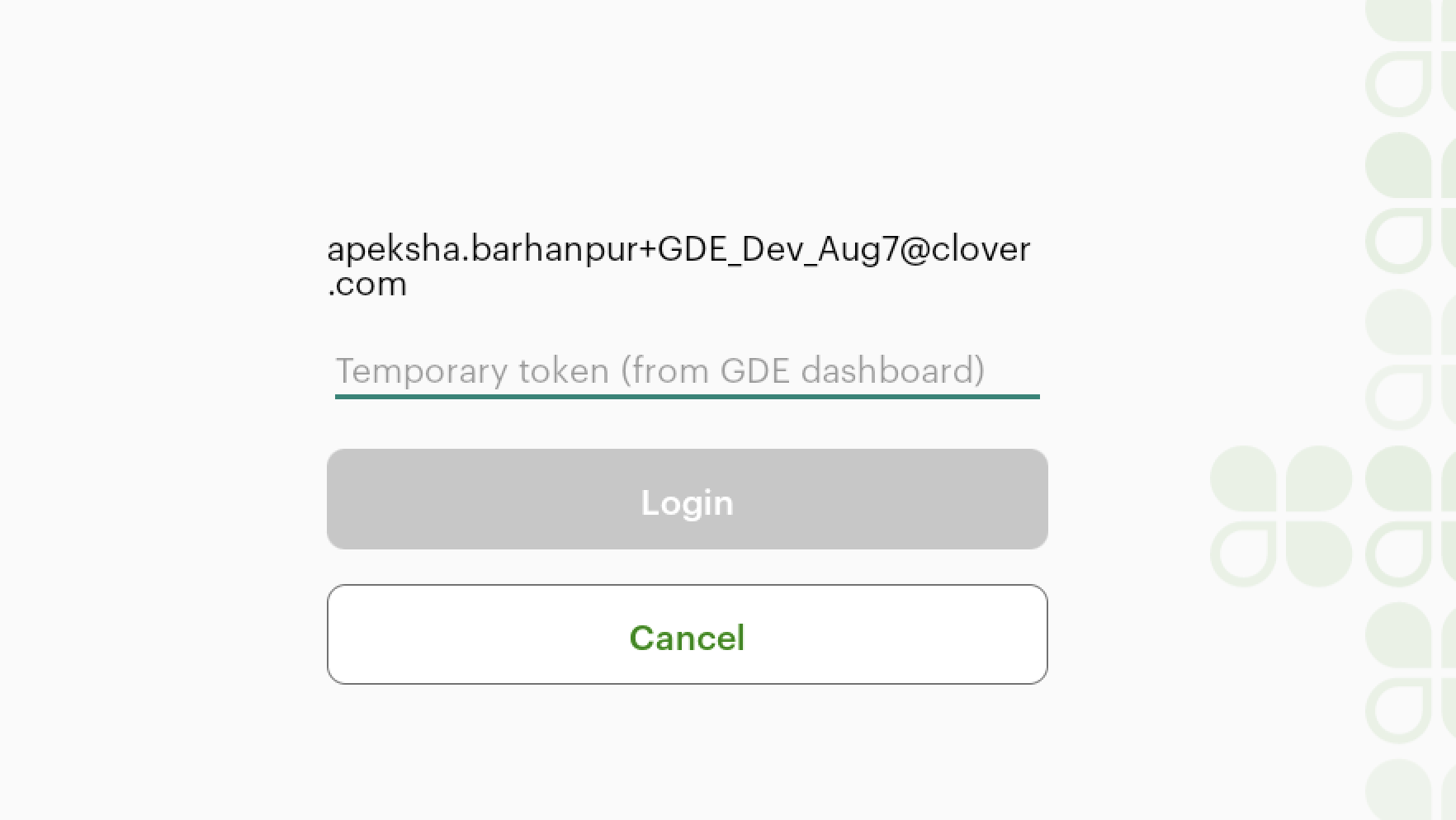
In the credential field, enter the temporary token you copied from the dashboard.
-
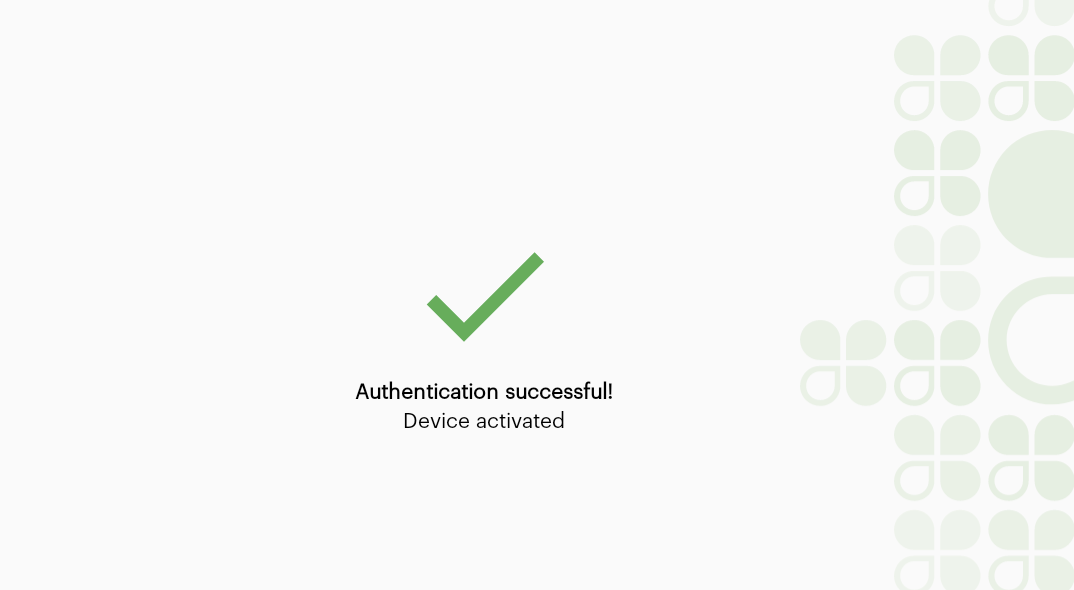
Confirm the submission. COS validates the temporary token with GDE services and provisions the virtual device for the selected test merchant.
Verification
To verify account provisioning:
-
On the emulator, tap Settings > Accounts.
-
Confirm that Clover displays your developer email address.
-
Open the Clover Launcher or your installed test app to verify that merchant data (orders, inventory, and employee roles) loads properly.
Limitations and exclusions
- Station Duo and Duo 2: Clover does not support emulation of Station Duo or Duo 2 because each system combines two paired physical devices (Terminal and Display).
- Hardware-specific features: Test NFC payments, Bluetooth Low Energy (BLE), hardware receipt printing, and physical barcode scanning on a physical Clover Developer Kit (Dev Kit). The emulator does not support these features.
- Account roles: Only the owner of a merchant account has permission to generate tokens and set up virtual device instances.
Related topics
Updated about 5 hours ago